Short answer: get the ChatGPT desktop app, which includes Codex, from the Microsoft Store. For the command line, OpenAI documents a PowerShell installer and npm install -g @openai/codex, and Codex can run natively on Windows or inside WSL2. The app and the native CLI share %USERPROFILE%\.codex, so they share one login; WSL has its own. To run several accounts side by side in the app, Sessions Pro for Codex opens each in its own window.
Free 1-hour preview once you've signed in to a profile. For macOS 14 or later, or Windows 10 or 11, with the ChatGPT desktop app.
The desktop app from the Microsoft Store
On Windows, the ChatGPT desktop app with Codex comes from the Microsoft Store (its package is OpenAI.Codex). It keeps its browser data in %APPDATA%\Codex\web\Codex and its Codex data, login and threads in %USERPROFILE%\.codex. If you already have the CLI, codex app launches the desktop app, or opens the installer if it's missing.
The Codex CLI, natively
OpenAI documents two ways to install it. From a new PowerShell window:
powershell -ExecutionPolicy ByPass -c "irm https://chatgpt.com/codex/install.ps1 | iex"Or with Node.js installed:
npm install -g @openai/codexThen run codex and sign in. OpenAI describes two native Windows sandbox modes (an elevated one, preferred, and an unelevated fallback), set in config.toml. The Store app also ships its own codex.exe in its package folder:
Join-Path (Get-AppxPackage OpenAI.Codex).InstallLocation 'app\resources\codex.exe'The Codex CLI inside WSL2
The other route is WSL2, which uses Codex's Linux sandbox. Install WSL from an elevated PowerShell with wsl --install, open a WSL shell, and install and run Codex inside it. Keep your repositories on the Linux file system: OpenAI notes that working through Windows paths such as /mnt/c/ can be slower.
Inside WSL, ~ is your Linux home, so Codex there uses its own ~/.codex: a separate login and history from the Windows app.
Which one shares what?
| Login and threads | Shares with the app? | |
|---|---|---|
| ChatGPT app (Store) | %USERPROFILE%\.codex | — |
| Native CLI | %USERPROFILE%\.codex | ✓ Same login |
| CLI in WSL2 | ~/.codex on the Linux side | ✕ Separate |
Several accounts, one PC.
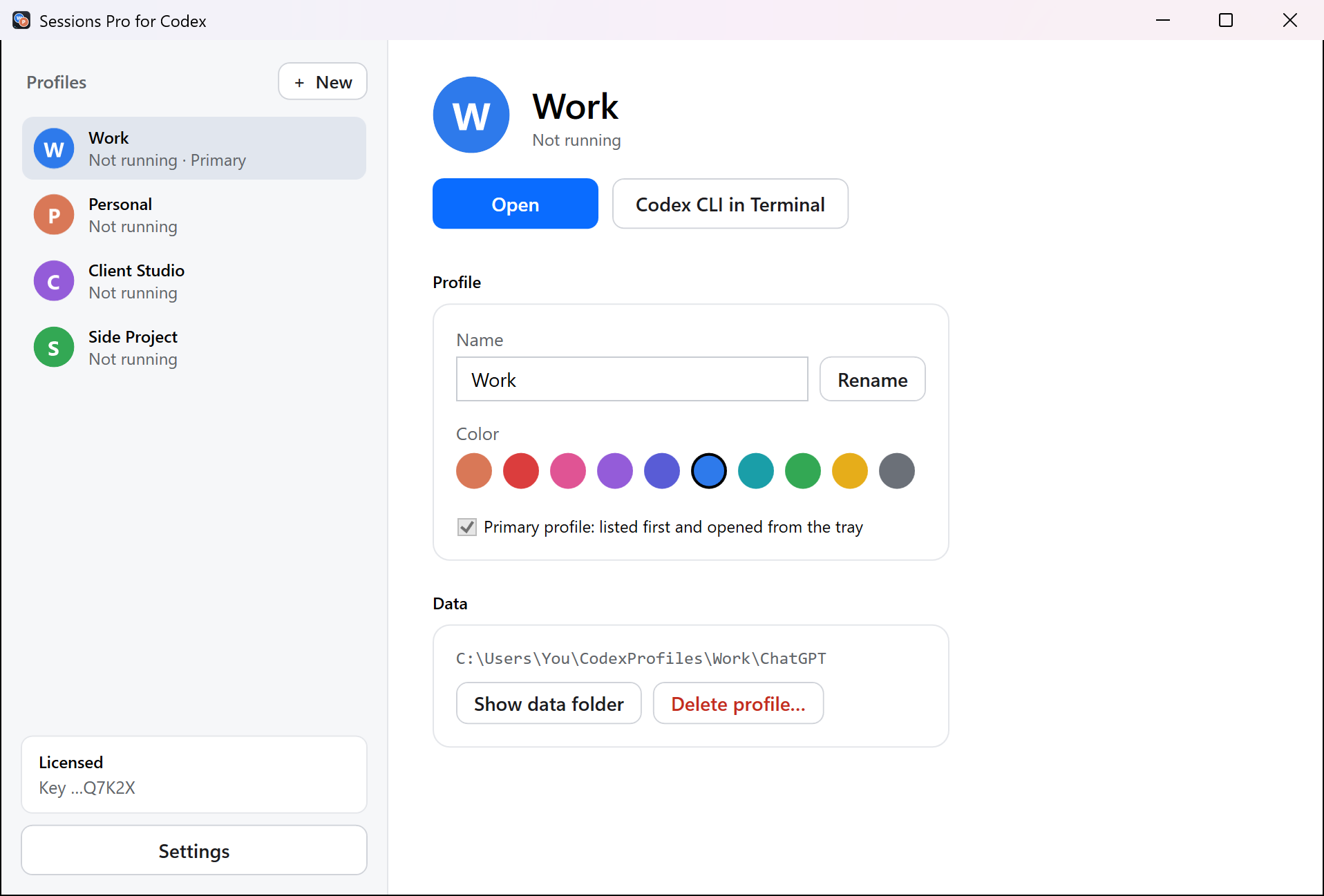
The app and the native CLI share one .codex, so they share one account. Sessions Pro for Codex for Windows runs the ChatGPT app once per account, each in its own window titled with its profile name, with its own taskbar button and color, login, chats and Codex threads. "Codex CLI in Terminal" opens a terminal with that profile's own CODEX_HOME.
For the CLI alone, a CODEX_HOME per account is free: two Codex accounts on Windows.
We make Sessions Pro for Codex.
 Sessions Pro for Codex
Free 1-hour preview · 14-day refund · 2 computers, Mac or PC
FAQ
How do I install Codex on Windows?
The ChatGPT desktop app, which includes Codex, comes from the Microsoft Store. For the CLI, OpenAI documents a PowerShell installer and npm install -g @openai/codex; it can also run inside WSL2.
Should I run the Codex CLI natively or in WSL2?
OpenAI documents both: native Windows with its own sandbox, or WSL2 with the Linux sandbox. Native shares %USERPROFILE%\.codex and its login with the desktop app; WSL has its own ~/.codex.
Where does Codex keep its settings on Windows?
In %USERPROFILE%\.codex unless you set CODEX_HOME: the login, config.toml and your sessions. The desktop app keeps its browser data in %APPDATA%\Codex\web\Codex.
Sessions Pro for Codex is made by LEX GLOBAL IT S.R.L. and is not affiliated with, endorsed by or sponsored by OpenAI. It runs the official ChatGPT app with accounts you already have, and OpenAI's terms apply to each account. ChatGPT and Codex are trademarks of OpenAI.